
User Interface
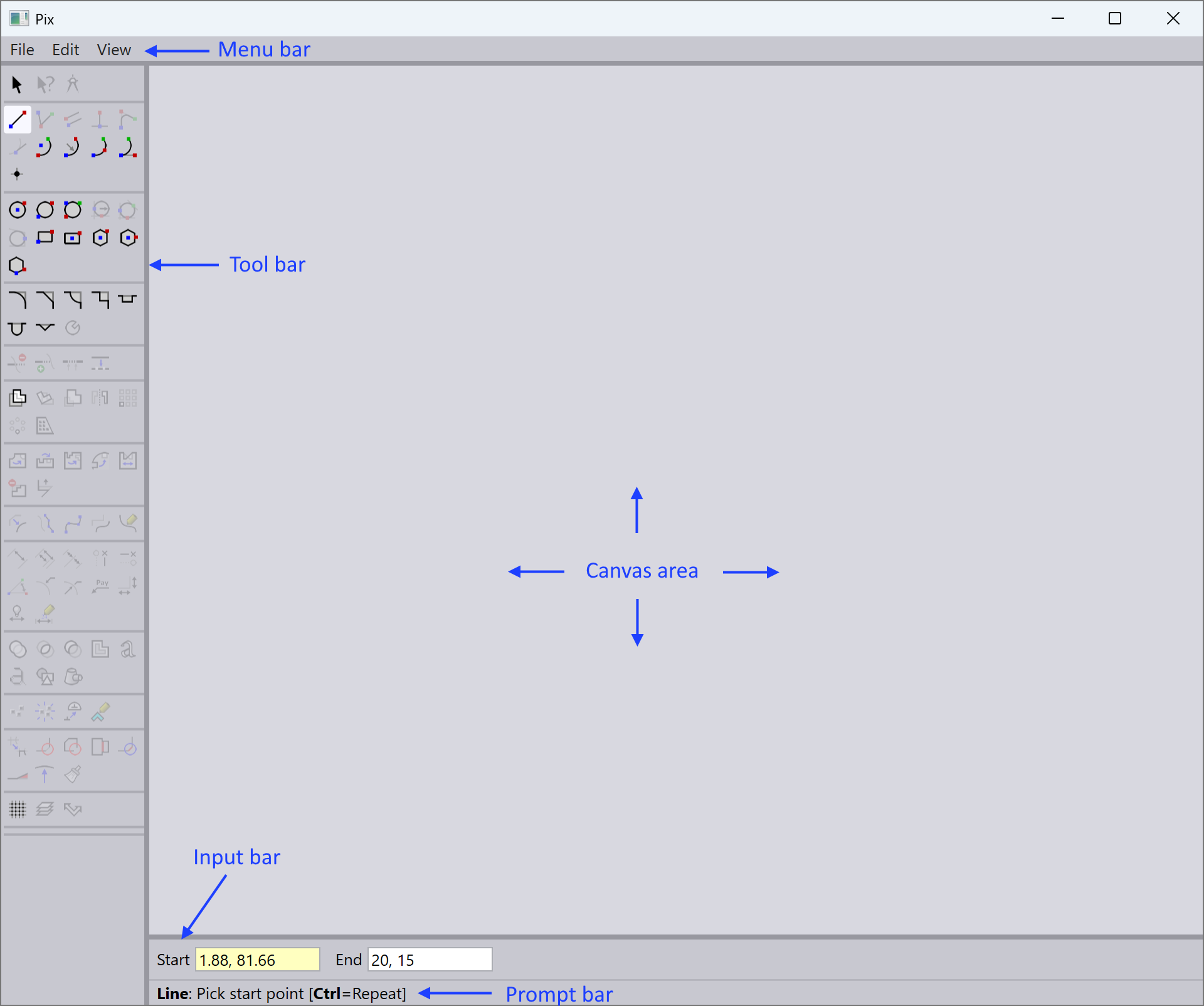
The Pix user interface is designed to be intuitive and user-friendly. The main components of the interface include:
-
Menu Bar: Located at the top of the window, the menu bar provides access to various functions and settings within Pix.
-
Toolbar: Located at the left side of the window, the toolbar contains commonly used tools and features.
-
Canvas Area: The central area of the interface where images are displayed and edited.
-
Prompt bar: Located at the left bottom of the window, the prompt bar allows users to input commands and view status messages.
-
Input bar: Located at the bottom of the window, the input bar is where users can enter text or commands related to their image editing tasks. Start and End coordinates for commands are specified here.
When a command is selected from the toolbar, the corresponding options and settings will appear in the input bar and prompt bar for further customization. The canvas area will update in real-time to reflect any changes made.
Coordinates types
When using keyboard input to specify positions on the canvas, Pix supports different coordinate types to provide flexibility and precision in image editing.
| The following coordinate types are applicable only when using keyboard input to specify positions on the canvas. |
Pix supports three different coordinate types for image editing:
-
Absolute Coordinates: These coordinates are based on the pixel grid of the canvas. The origin (0,0) is located at the bottom-left corner of the canvas.
Example(10, 20) refers to absolute position with X=10 units and Y=20 units from the bottom-left corner of the canvas.
-
Relative Coordinates: These coordinates are defined in relation to a previous point on the canvas.
Example(@10,5) refers to a position relative to the previous point. If you are typing in the End coordinates field, then the previous point is the Start coordinates. If you are typing in the Start coordinates field, then the previous point is the last point used before that.
-
Polar Coordinates: These coordinates are defined by an angle and a relative distance from a previous point on the canvas.
Example(@10 < 135) refers to a point that is 10 units away from the previous point at an angle of 135 degrees.
Zoom in and out
You can zoom in and out of the canvas area using mouse wheel.
-
To zoom in, scroll the mouse wheel forward (away from you).
-
To zoom out, scroll the mouse wheel backward (towards you).
While performing zoom in and out operations, the position of the mouse cursor determines the focal point of the zoom. This allows you to zoom in and out centered around the mouse cursor position.
Use the shortcut key Ctrl+E to zoom extents, which adjusts the view to fit the entire drawing within the canvas area.
Save options
You can save your work in Pix using shortcut Ctrl+S or by selecting File > Save from the menu bar.
Pix supports the following file formats for saving your designs:
-
DXF files(.dxf)
-
GEO files (.geo)
-
Pix CURL files (.curl)
When saving your work, you will be prompted to choose a file format and specify a file name and location.