
Pix User Manual

  • Welcome to Pix
  • Installation
  • User Interface
  • Toolbar overview
  • Toolbar commands
    • Selection
      • Pick
      • Measure
    • Draw
      • Line
      • Parallel line
      • Perpendicular line
      • Arc
      • 2-Point arc
      • 3-Point arc
      • Tangent-Point arc
      • Point
    • Draw shapes
      • Circle
      • 2-Point circle
      • 3-Point circle
      • Rectangle
      • Center-Point rectangle
      • Inscribed polygon
      • Circumscribed polygon
      • Edge polygon
    • Edit edges
      • Fillet
      • Chamfer
      • Inside fillet
      • Corner step
      • Edge recess
      • Edge U-Cut
      • Edge V-Cut
      • Key slot
    • Modify
      • Move
      • Rotate
      • Scale
      • Mirror
      • Rectangular array
      • Polar array
      • Trim
      • Extend
    • Dimensions
      • Linear Dimension
      • Baseline Dimension
      • Continue Dimension
      • Angle Dimension
      • 3-Point Angle Dimension
      • Radius Dimension
      • Diameter Dimension
      • Callout Dimension
      • Segment Dimension
    • Cleanup
      • Join
      • Decurve
      • Remove Small Segments
      • Mark Open Polylines
      • Highlight Overlaps
      • Mark Non-Tangent Corners
      • Mark Large Radius
    • Setup
      • Layer Setup
      • Shift Origin
  • Demo Videos
Toolbar commands
/
Modify
/
Extend

Extend

The Extend Extend tool is used to extend any line or arc segment with a specified distance or until it intersects with another entity.

Extend using a distance

To extend an entity by a specific distance, select the Extend tool and then type in the distance value in the input. After entering the distance, click on the entity you want to extend.
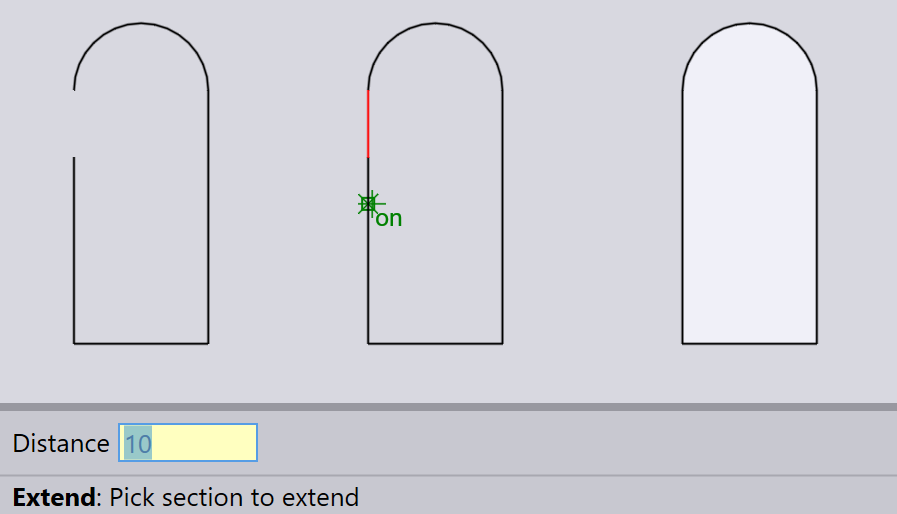
Extend by distance
Extend to an intersection

To extend an entity until it intersects with another entity, select the Extend tool and click on the entity you want to extend. The entity will be extended until it meets the nearest intersecting entity.
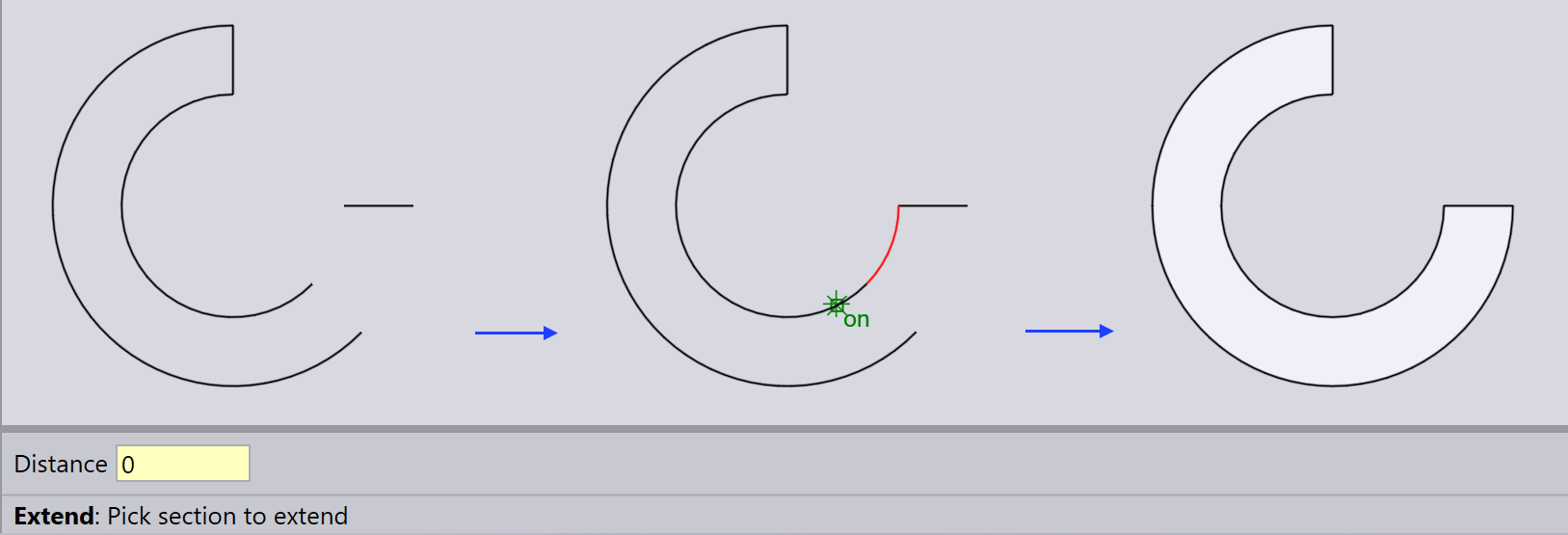
Extend to intersection
Joining two lines

The Extend tool can also be used to connect two lines. To do this, select the Extend tool, click on the first line, and then click on the second line you want to connect it to. The first line will extend until it intersects with the second line. Click on the second line to complete the operation.
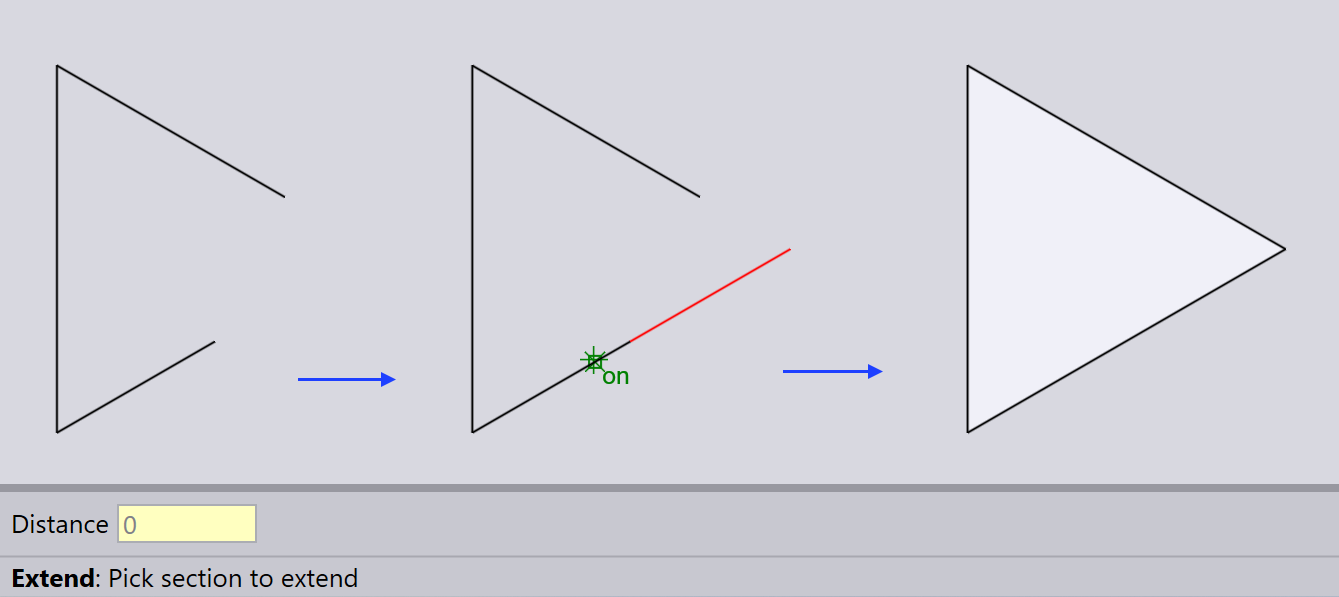
Join two lines
Trim Dimensions

      Copyright © 2025 TRUMPF Metamation. All rights reserved.

    Compiled by Bento