
2-Point arc
The 2-Point Arc  tool is used to draw arcs
by specifying the start point and the end point. A major or minor arc can be
drawn in clockwise or counter-clockwise direction between the two points.
Using the mouse
The first click of the left mouse button sets the start point of the arc.
The second click sets the end point of the arc (this effectively sets the radius, center, start and end angle of the arc).
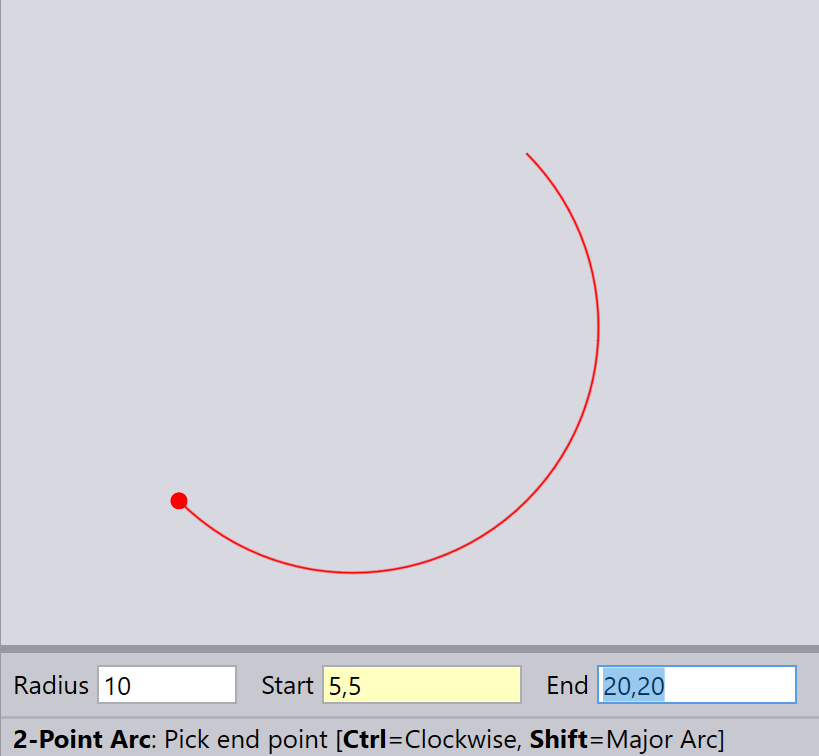
If you hold down the Ctrl key while clicking on the second point (as the prompt explains in the image below), the arc is drawn clockwise from the start point to the end point. Otherwise, it goes counter-clockwise.
If you hold down the Shift key while clicking on the second point, major arc is drawn between the start and end point. Otherwise, a minor arc is drawn.
Using the keyboard
Type in the Start, End and Radius and then press Enter to draw an arc.
If you hold down the Ctrl key while pressing Enter, then arc is drawn in clockwise direction. Otherwise, it is drawn in counter clockwise direction.
If you hold down the Shift key while pressing Enter, then a major arc is drawn. Otherwise, a minor arc is drawn.