Pix User Manual

  • Welcome to Pix
  • Installation
  • User Interface
  • Toolbar overview
  • Toolbar commands
    • Selection
      • Pick
      • Measure
    • Draw
      • Line
      • Parallel line
      • Perpendicular line
      • Arc
      • 2-Point arc
      • 3-Point arc
      • Tangent-Point arc
      • Point
    • Draw shapes
      • Circle
      • 2-Point circle
      • 3-Point circle
      • Rectangle
      • Center-Point rectangle
      • Inscribed polygon
      • Circumscribed polygon
      • Edge polygon
    • Edit edges
      • Fillet
      • Chamfer
      • Inside fillet
      • Corner step
      • Edge recess
      • Edge U-Cut
      • Edge V-Cut
      • Key slot
    • Modify
      • Move
      • Rotate
      • Scale
      • Mirror
      • Rectangular array
      • Polar array
      • Trim
      • Extend
    • Dimensions
      • Linear Dimension
      • Baseline Dimension
      • Continue Dimension
      • Angle Dimension
      • 3-Point Angle Dimension
      • Radius Dimension
      • Diameter Dimension
      • Callout Dimension
      • Segment Dimension
    • Cleanup
      • Join
      • Decurve
      • Remove Small Segments
      • Mark Open Polylines
      • Highlight Overlaps
      • Mark Non-Tangent Corners
      • Mark Large Radius
    • Setup
      • Layer Setup
      • Shift Origin
  • Demo Videos
Toolbar commands
/
Edit edges
/
Corner step

Corner step

The Corner step Corner step tool is used to add a step at a corner of a polyline by specifying two distances from the corner along each of the segments meeting at the corner.
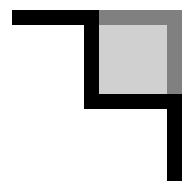
In principle, the functionality of the corner step is similar to that of a chamfer, but instead of beveling a corner, it adds a rectangular step.

Creating a corner step

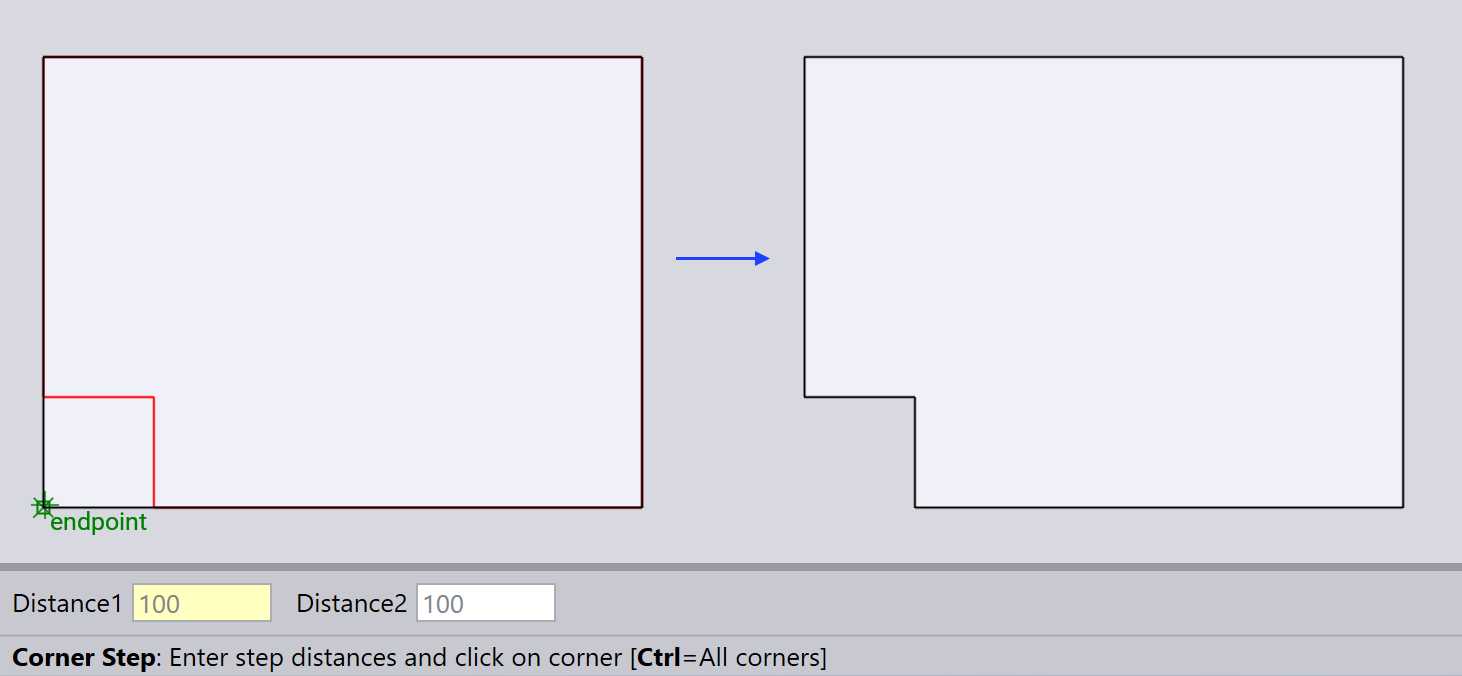
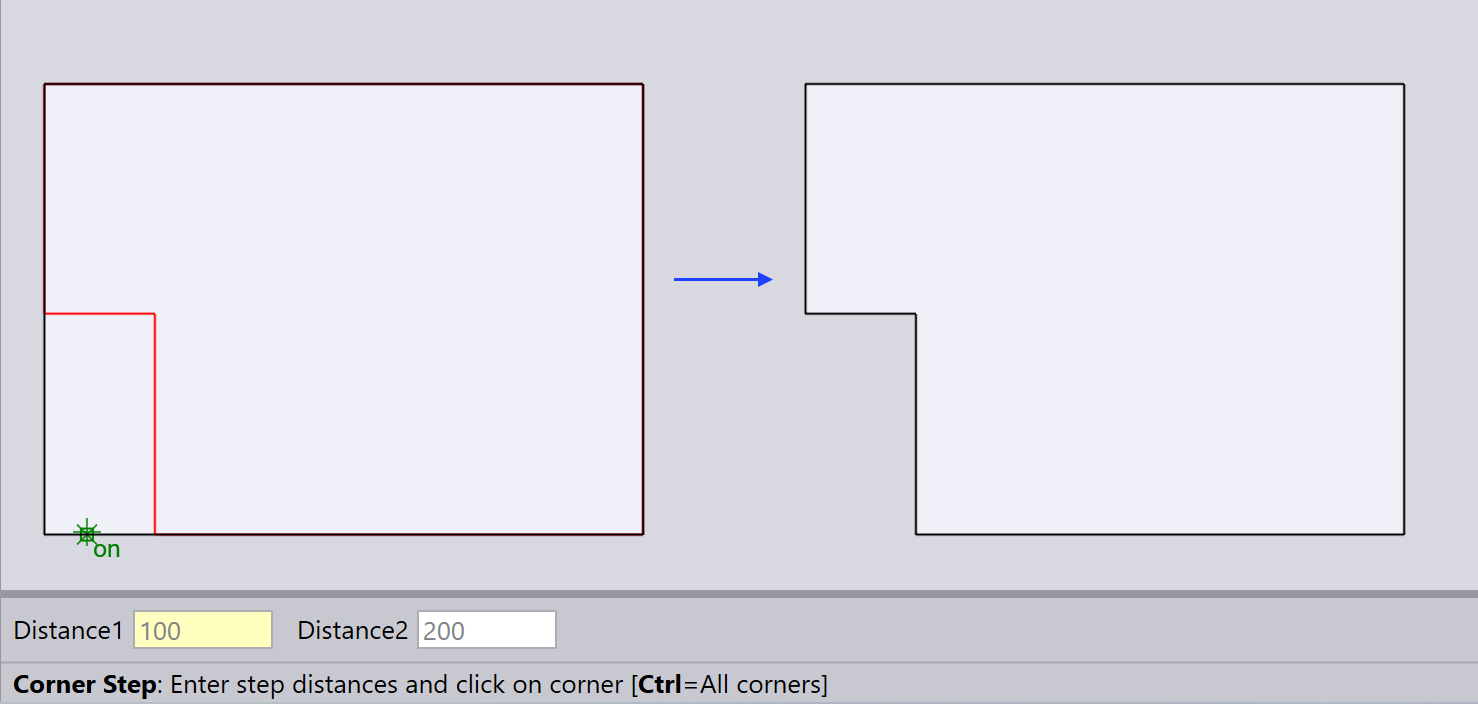
Type in the step distances Distance1 and Distance2 and click near a corner to create a rectangular step.

If both distances are equal, then the corner step will be symmetric. If the distances are unequal, then the first distance will be applied to the segment that the mouse is closer to.
Equal corner step
Unequal corner step

Creating corner steps outward

You can create an outward corner step by clicking on the outside of the contour.
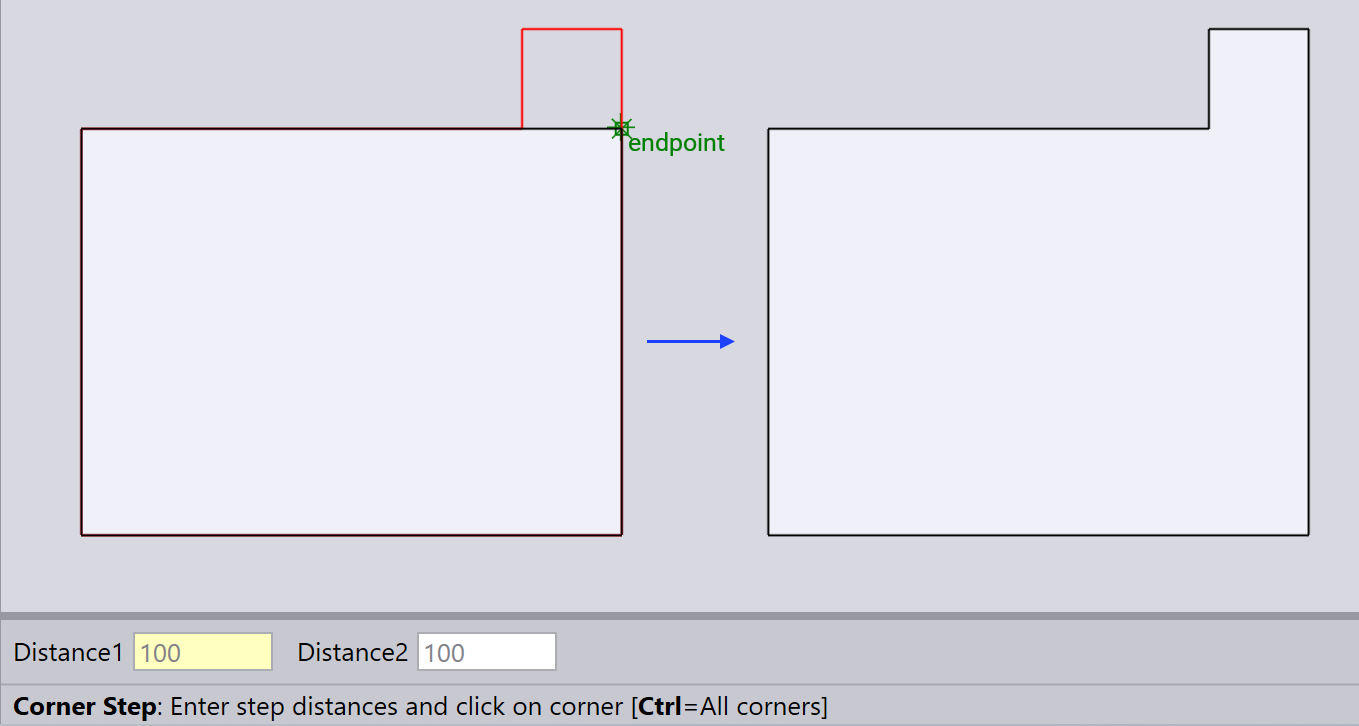
Outward corner step

Creating corner steps at all corners

You can add corner-steps to all corners by holding down the Ctrl key when clicking on a corner.
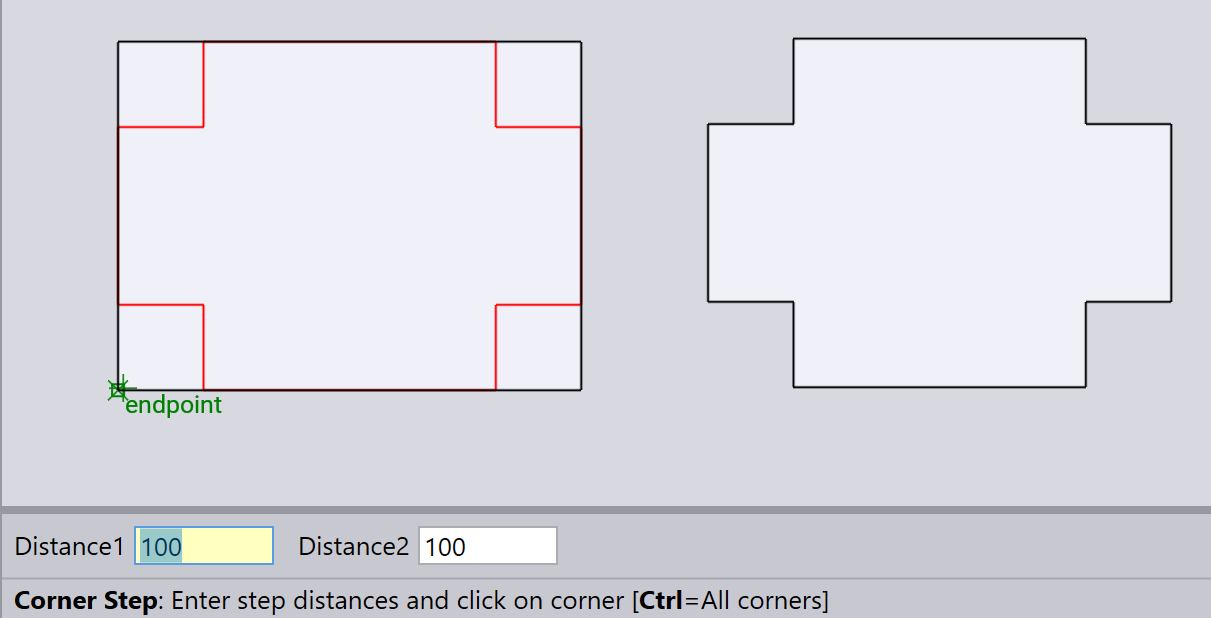
Corner step-All
You can also create outward corner-steps by clicking on the outside of the contour when applying to all corners.

Observe how the chamfer is mirrored when applied to the corners. The mirroring is determined by assessing which of the two segments forming the corner is closer to horizontal and which is closer to vertical. This option may be less reliable for intricate shapes.

The corner step is created only if both the line segments meeting at the corner are straight lines, and of sufficient length.

Contents

  • Creating a corner step
  • Creating corner steps outward
  • Creating corner steps at all corners
Inside fillet Edge recess

      Copyright © 2025 TRUMPF Metamation. All rights reserved.

    Compiled by Bento